Showing posts with label PDF. Show all posts
28 May 2012

BlackBerry eBook Readers – Read Books & Office Documents on the go!


Got a BlackBerry? Here’s a round-up of some free BlackBerry apps that will turn your mobile phone into a proper eBook reader – not like Kindle or Sony Reader but close. Later, we looks at workarounds to help you catch up with business documents, downloaded web pages, PDFs, etc. on your BlackBerry from virtually anywhere.

BlackBerryReview of BlackBerry e-Book Readers

Following is a list of eBook readers currently available for BlackBerry – they are all free software and support most BlackBerry models including the latest ones like BlackBerry Bold and Storm.
1. eReader Pro – This eBook software from Barnes & Noble will help you browse and download books directly on to your BlackBerry device. It can read any of your existing eBooks that are written in the PDB format or you may download one of their free titles to get started.
Just connect the BlackBerry device to you computer, copy the PDB files on to the phone’s memory card, disconnect and you can now read this eBooks inside BlackBerry. The eReader software includes a handy search function, you can bookmark pages and it automatically remembers where you left off.
2. Short Covers – This is a unique online book store that provides both a desktop and a mobile interface for reading ebooks. That means you can buy an eBook from Short Covers and read part of that book on your desktop browser and the remaining part on your BlackBerry or another computer. These mobile and online interfaces are always in sync so you can pick up from where you left off on the previous device.
The first chapter of any ebook / magazine available on Short Covers is always free so you can easily decide whether you want to make the purchase. You can also upload your own Word Documents or HTML web pages to Short Covers and either sell this content as other ebooks or distribute it for free under a Creative Commons license.
The BlackBerry Reader software of Short Covers is not perfect yet though their online store and reading interface is pretty nice.
3. MobiPocket Reader – This ebook reader is from Amazon, the same company that develops the popular Kindle e-ink reader. With MobiPocket, you can read files of virtually any format in your BlackBerry including PDF documents, CHM Help files, HTML web pages and Microsoft Office formats (Word, Excel, PowerPoint).
The eReader software supports annotations (or text highlighting), you can copy text from an eBook into the BlackBerry’s clipboard (useful for emailing snippets), add notes on individual pages, the layout margins are adjustable and you can quickly navigate around the book with simple keyboard shortcuts. Just perfect.
Using BlackBerry as a PDF Viewer
To read Adobe PDF files in your BlackBerry, you can simply send that file as an attachment to your own email address and then use the built-in PDF viewer of BlackBerry’s email client to read that document. The same idea may be used for reading Office documents, such as Microsoft Word, Excel and PowerPoint, on the BlackBerry.
That’s one approach but if you have multiple PDF documents on your computer that you want to read on a BlackBerry, you may consider buying a standalone PDF viewer like the Documents to Go or Beam Reader. These apps can handle both PDF attachments and PDF documents stored on the memory card of your BlackBerry but they cost money so here’re some free alternatives.
Read PDFs & Office Documents on a BlackBerry as eBooks
import documents into blackberry
Amazon owned Mobipocket eBook Reader comes with a free Windows application to help you manage your entire eBook library from the desktop. This app has a built-in tool to convert Office Documents, PDFs, HTML pages, etc. into eBooks that your BlackBerry ebook reader can understand.
So all you have to do is import documents into the Mobipocket Reader bookshelf (see screenshot) and connect the BlackBerry to the computer. It can’t get simpler than this.
Save HTML Web Pages as BlackBerry eBooks
If you like to read offline web pages (say a long article that you downloaded from The New York Times website) on your BlackBerry, try Stanza Desktop – you probably know Stanza for their popular eBook reader for iPhone that was recently acquired by Amazon.
stanza reader for blackberry
With Stanza Desktop, you can open any web page directly in the application and export it into a format that can be read on most mobile devices. It support epub, Palm PDB, Microsoft LIT, Adobe PDF and most other popular ebook file formats.
Unlike Mobipocket, Stanza formats web content (and Office documents) like a real book (sans any distracting elements) and you are therefore very likely to enjoy this layout for reading. You may transfer these Stanza ebooks into BlackBerry via MobiPocket Desktop.
How to Create eBooks for BlackBerry from Scratch
The tools and techniques discussed about are more about conversion but if you like to create an eBook from scratch for reading on a BlackBerry, check out Mobipocket Creator.
It’s a free application that lets you create eBooks from scratch using text files, PDFs, Word documents and images. You may preview the eBook in a local simulator before publishing it to the world.

Incoming Search:
Blackberry ebook reader, blackberry ebook reader free download, how to read ebooks in blackberry mobile, ebook reader for blackberry, read office documents in ebook reader, read office documents in blackberry
22 May 2012

How To Remove Password From Password Protected PDF Document


If you need to send a PDF document to one of your friend but it is password protected and you can’t want to tell him your password or if you have many documents which are password protected and most of them you need to view regularly so sometimes it becomes irritating to type the password every time you need to view it.
If you are looking for a way to remove password from any PDF document, here let me tell you few ways but to remove you should know the password of those PDF files.


Unlock PDF Documents

Online tools

PDFUnlock and PDFDecrypt are two online tools which lets you remove password from your PDF files, all you need to do is visit anyone of those website, choose your PDF file, give password of your PDF file and click on Unlock or Decrypt button

Desktop App

If you don’t want to upload you files online then

BeCyPDFMetaEdit

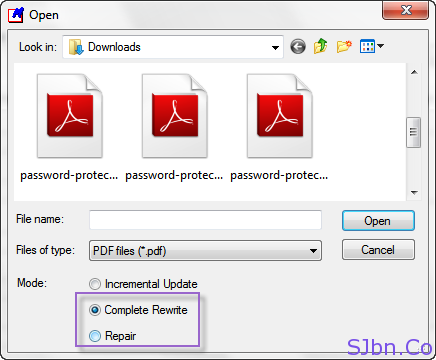
There is a free application called BeCyPDFMetaEdit which can also remove password of your PDF document. To remove download and run BeCyPDFMetaEdit software, choose your PDF file and while choosing select Complete Rewrite or Repair, then from Security tab select no encryption from drop-down and click on Save or Save As button to save that file without password protected.


BeCyPDFMetaEdit - Complete Rewrite or Repair

CutePDF

CutePDF Writer in a desktop application which lets you save any documents in PDF when you try to print it, so do you need to download and install this software in your computer, open your password protected PDF file, try to print that file (while printing select CutePDF Writer as printer name) and it will ask you to save that file as a new PDF which will be not encrypted.


Incoming Search:
Unlock pdf files, how to unlock pdf file, unlock pdf files online, pdf password protected, password protected pdf, unlock pdf 
24 Apr 2012

HOW TO SIGN PDF DOCUMENTS ELECTRONICALLY WITHOUT INK OR PAPER REQUIRED ?


electronic signature
You are working hard to achieve that perfect paperless officebut there are some things that still require paperwork. For instance, you just received a contract via electronic fax that you are supposed to sign and fax it back. Or there’s a PDF / Word document waiting in your email inbox that you need to print on paper, put your handwritten signatures, scan the signed copy and send it back to the client again via email.
That process is both time consuming and forces you to do something that you are trying so hard to avoid (i.e., use paper). So if you are looking to eliminate paper from the loop, here are some software tools, web services and workarounds that will help you capture your signature directly on the electronic file without requiring paper or ink.

How to Digitally Sign Documents

The first step is to create a digital image of your signature – there are multiple ways of doing that:
Option #1. If you have an iPhone, iPod Touch or any touch sensitive mobile device, use an app like “Fountain Pen” or “Sketch Pad” to draw your signature using your fingers and then transfer the image to your computer.
Option #2. If you have don’t have access to a touch phone or a scanner, put your signatures on a white piece of paper and take a photograph of that paper using your digital camera or even the camera of your mobile phone (some tips).
Option #3. Alternatively, you can use any graphics software (like MS Paint), an online image editor (like Splash Up) or even Google Docs (see video) to draw your signature with the mouse pointer. I like the Google Docs options since it creates a transparent stamp of your signature.
Option #4. Go to Live Signature, draw your signature on the screen and click the “Create Signature” button to download your signature as an image.
Now that you have the written signature in image form, the next step involves putting that e-sign image into the document.
If the contract or agreement is in Microsoft Word or any other common editable format, things are pretty easy. Open the document in any Word processing software (or Google Docs) and insert the signature image inline. Save the document as PDF and email it back to the client.
How to Sign a PDF Document
If the initial document is in Adobe PDF format, you need to follow a couple of extra steps because, unless you have a PDF editor like Adobe Acrobat, editing PDF files is not always straight-forward.
Option #1: Convert the PDF document to Word using this free web service, add the image to the Word file (as in the previous example) and export the document as PDF to prevent editing. The PDF to Word service may not always replicate the exact formatting and appearance of the original PDF file but it’s still very close especially in the case of text documents.
To password protect your signed-PDF documents, open the document inside PDF Hammer, add a password restriction and re-export it as PDF.
Option #2: If the PDF document that you have to sign is long or includes complex formatting, conversion may not be the right option for you. In that case, you have two choices:
2 a: PDF X-Change – This is awesome PDF Viewer for Windows that also includes some very useful editing features.
pdf_sign
Import the signature image into the Stamps Palette, open the PDF file that you want to sign and use the stamps tool (under Tools -> Comment & Markup) to sign anywhere in the document. You can then export the signed document as PDF and none of the original formatting should be lost.
2 b: OpenOffice Draw – The latest version of OpenOffice 3.1 along with this free Sun Extension can be used as a PDF editor.
Once installed, click the OpenOffice icon on your desktop and open the PDF document – this will auto open in OpenOffice.org Draw. Now choose Insert -> Picture -> From File to insert the signature image anywhere in the PDF file.
openoffice
The good part about OpenOffice is that it is available for Windows, Mac and Linux platform but there’s no individual install for the Draw module so you’ll have to download the full 150 installer of OpenOffice.org but choose to install only Draw at setup.
Web Apps for Electronic Signature
The options discussed above are handy if you have to sign documents but what if you are on the other side of the fence and need another party to sign your document electronically.
In that case, you should consider using web based signatures services from either EchoSignor Right Signature – they both work on similar lines. You upload a PDF or Word document that needs to signed and also specify the email addresses of people who have to sign that file. The recipients can open the document inside their web browser, add their signature (with the timestamp) and done.
You can then download the signed document on to your own computer. There’s no software to install and no sending fax messages back and forth. Both Echo Sign and Right Signature are paid services but trial users can send up to 5 documents for free.
[*] These electronic signatures should not be confused with Digital Signatures that can only be had from certification authorities such as Verisign. Electronic signatures on documents are also considered legally binding in most countries.

31 Mar 2012

Adobe PDF Guide: How to Do Everything with PDF Files


Adobe PDF is the best format for sharing documents because they are compact, the formatting is preserved and most computers / mobile devices / ebook readers can easily handle PDF files.
Here you’ll learn how to do just about everything with PDF documents without buying Adobe Acrobat. You can edit PDF files, combine multiple files as one, add signature images to PDF pages, fill PDF forms online, add clickable hyperlinks to existing PDF documents and so much more.


© Copyright 2010-2011 Tech Google All Rights Reserved.