Showing posts with label Security. Show all posts
22 May 2012

How To Remove Password From Password Protected PDF Document


If you need to send a PDF document to one of your friend but it is password protected and you can’t want to tell him your password or if you have many documents which are password protected and most of them you need to view regularly so sometimes it becomes irritating to type the password every time you need to view it.
If you are looking for a way to remove password from any PDF document, here let me tell you few ways but to remove you should know the password of those PDF files.


Unlock PDF Documents

Online tools

PDFUnlock and PDFDecrypt are two online tools which lets you remove password from your PDF files, all you need to do is visit anyone of those website, choose your PDF file, give password of your PDF file and click on Unlock or Decrypt button

Desktop App

If you don’t want to upload you files online then

BeCyPDFMetaEdit

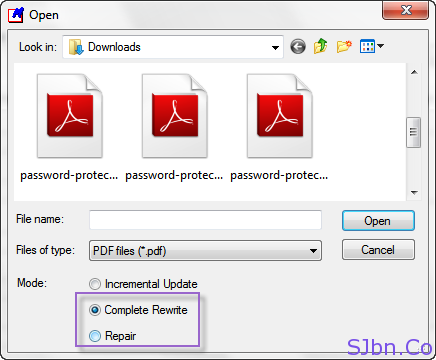
There is a free application called BeCyPDFMetaEdit which can also remove password of your PDF document. To remove download and run BeCyPDFMetaEdit software, choose your PDF file and while choosing select Complete Rewrite or Repair, then from Security tab select no encryption from drop-down and click on Save or Save As button to save that file without password protected.


BeCyPDFMetaEdit - Complete Rewrite or Repair

CutePDF

CutePDF Writer in a desktop application which lets you save any documents in PDF when you try to print it, so do you need to download and install this software in your computer, open your password protected PDF file, try to print that file (while printing select CutePDF Writer as printer name) and it will ask you to save that file as a new PDF which will be not encrypted.


Incoming Search:
Unlock pdf files, how to unlock pdf file, unlock pdf files online, pdf password protected, password protected pdf, unlock pdf 
16 May 2012

500 Worst Passwords | 500 Most common Passwords used by many people


500 Worst Passwords to use:

Here I am posting a list of 500 most commonly used passwords.So to protect your online life don’t use any of these passwords.
500 Worst Passwords - 500 Most common Passwords
I think this list of 500 most common passwords will help you a lot while choosing password for you.
So friends Again I am saying don’t use any of these 500 most common passwords.


19 Apr 2012

WILL GOOGLE EMPLOYEES READ YOUR GMAIL ?


gmail logo
All your private and confidential emails are stored in your Gmail mailbox but are they secure? Can a Google employee working on the Gmail product read your messages?
In theory, the answer could be yes. Christopher Nguyen, who was earlier responsible for Google Apps operations at Google, shared this on Quora:
A small number of GMail related engineers have access to the servers as a matter of necessity to do their jobs; a very small number of people actually access the contents as a matter of necessity to do their jobs, and even then, almost always only the associated metadata.
The rest have to file a request and justify any access they ever need, which is extremely rare. All have to sign paperwork re users’ privacy at the risk of dismissal & legal action, knowing that whatever they do is discoverable. And ultimately, an internal culture of respecting users’ privacy helps keep one another in check.
Google also serves contextual text ads in Gmail and these ads are triggered based on the content of the email message that your currently reading. Obviously it is the bots that are scanning your Gmail messages for relevant keywords but Microsoft, with a hope that some Gmail users will shift to Hotmail, is using this point to target Google on privacy.
Some email services, like Gmail, actually read the contents of your mail (both sent and received, even if you aren’t a Gmail user but just sending to someone who is) in order to decide what kind of ads to serve up to you. They may call it “scanning” and attempt to equate it with less invasive activities like “checking for spam” but it’s quite different. For you, and the people you send mail to, it’s not spam, it’s personal.
Microsoft has also released a video, titled the Gmail Man, highlighting this Gmail behavior. Microsoft uploaded the video to YouTube, a platform owned by Google, and it isn’t therefore surprising that the video has garnered more dislikes than likes – after all, most YouTube users are also Gmail users and they aren’t buying Microsoft’s argument.

MAKE A SECURE YOUTUBE FOR YOUR KIDS


Whether you are looking for cartoons, videos of nursery rhymes or animated movies to keep your kids entertained, YouTube has them all.
A simple search reveals that YouTube currently has more than 65,000 “Mickey Mouse” videos and over 56,000 “Tom and Jerry” cartoons. It will therefore be hard, if not impossible, to find a video that’s available in your nearest movie library but is not on YouTube (the video may have been ripped from the DVD and uploaded illegally but that’s a different story).
YouTube Videos for Kids
Not all YouTube videos are appropriate for children 
Kids, as most parents would agree, are quite tech-savvy these days. They may be too young for reading or writing but they can still easily operate the YouTube site (using image thumbnails) without seeking the help of their parents.
That may be a good thing but the problem with YouTube is that it is not a very child-friendly site in terms of content. You child may be watching a perfectly “safe for kids” video on YouTube but she may still accidently run over videos that aren’t very appropriate for her.
How do you prevent this? Google has added a new security filter in YouTube that, when turned on, will automatically hide objectionable videos from the site. To activate the safety mode, just go to youtube.com, scroll to the bottom left and toggle the link that says “Safety mode is off.”
This won’t only block videos that contain adult content but clips that may have graphical images of violence will also be kept out of view.
youtube safety mode
YouTube Safety Mode can sometimes fail
Safety mode in YouTube is a temporary setting and the website will restore to its default (off) state once you close the browser. If you want to make this lock permanent, sign-in to YouTube with your Google Account and choose “Save and Lock Safety mode” instead of “Save”.
The Safety Mode in YouTube is a great option but don’t be too excited as it isn’t fool proof yet. This is because YouTube relies on the ”crowd sourcing” model to determine age-restricted content - if the community doesn’t flag a video, the clip will bypass the Safety mode filter as well.
In my limited testing, YouTube did block videos for terms like “naked” and “sex” but the filtering simply failed in quite a few cases. For instance, even though the safety mode is switched on in this screenshot of youtube.com, none of the related videos (and their thumbnail images) are safe for kids but they still show up on the YouTube website.
If you are still concerned, manually create a playlist on YouTube containing only videos that you want your kids to watch and then embed this playlist on another webpage (see example) – this will automatically hide all the other YouTube stuff from your children.
Incoming Search:
make youtube secure, how to securise youtube for children, secure youtube, make youtube secure for kids, secure youtube, secure youtube for children, kids secure from youtube
18 Apr 2012

LEARN HOW TO HIDE DATA ON YOUR COMPUTER


Camouflage
You may want to hide some files and folders on your computer for various reasons. Maybe you don’t want mom to accidentally stumble upon all the stuff that you have downloaded from the Internet. Or you share the home computer with an inquisitive brother and would not like him to view your private files. Or maybe it’s your work computer and you are worried that the system administrator may remotely access your files.

Hide your Data from Prying Eyes

Here are some ways to hide your data on the computer from other people:

Put your Sensitive Files in the Cloud

The easiest approach would be that you use a USB Flash Drive to store your confidential files and not the computer’s hard disk. USB disks are inexpensive – you can get a 16 GB disk for less than $10 – and some are so thin that they will easily fit in your wallet like a credit card.
The next option is that instead of storing the files on a physical disk, you upload them online to places like Google Docs (1 GB), Windows SkyDrive (25 GB) or Box (5 GB). Dropbox is another good option for online file storage but because the service synchronizes files automatically with your hard drive, you may want to avoid it on a common computer.
hide files in google docs
You can also use your web email accounts to store files – attach files to a messages and email it to yourself. The maximum size of files that you attach to an email message in Hotmail is 10 MB while the limit is 25 MB in the case of Gmail.
If you are planning to store EXEs or other prohibited file types in your mailbox, make sure that you change the file extension before attaching as the Gmail scanner will otherwise reject your message.

Hide Files inside Private (Invisible) Folders

If you wish to store your confidential files on the computer’s hard disk itself and not in the cloud, you have several options as well.
You can put all the secret files that you want to hide in one folder and then use a utility likeMy Lockbox to make that folder invisible on your hard disk. Once you hide a folder, it won’t appear in Windows Explorer and the only way to access the contents of that protected folder will be through My Lockbox.
The free edition of My Lockbox can lock one folder but if you would wish to hide multiple files or folders on your hard disk, use the free Winmend utility. Here you have the option to hide folders as well as individual files and someone will have to know your password to read, edit or erase any of these hidden files and folders.
hide folders and files

Hide Files and Folders by Camouflage

Your curious friend is less likely to open a folder that resembles the Recycle Bin and even if he does, the real contents of that folder won’t be revealed.
That’s the logic behind Disguise Folders, a free Windows utility that you can use to easily disguises any folder as a system folder – like the Control Panel, Recycle Bin or even the Fonts folder. When you open any of these “disguised” folders inside Windows Explorer, they’ll open the folder corresponding to their appearance but if you open the same folder through Disguise Folders, it will reveal the actual content of that folder.

Hide Files using the Steganography Technique

The other option to hide files and folder on your computer is steganography – it’s like embedding documents, images, and other files into another unsuspecting file – like your kid’s photograph.
The idea is that you can embed your private files into another file which could be a JPEG image or an MP3 audio file. If you wish to hide an entire folder into another file, just compress into a zip file. When someone double-clicks these “container” files, the image or MP3 will open in the default media player but internally, they are hold all your private files.
steganography
You can hide files inside regular MP3s or JPG images using the simple copy command or make use of this free utility called Our Secret. It work like this. You pick a carrier file – it could be a JPEG image or an audio file – and then select one or more private files that you want to hide inside the carrier file. The next step is optional but you can also encrypt the contained files with a password.
Your private files will be secretly bundled inside the carrier JPEG (or MP3) and only when you re-open this carrier file inside Our Secret, the hidden files will be decoded. If you use the DOS copy command to hide the files inside another image, the contained files can be extracted using any Winzip like utility without requiring any special program.

The Most Secure Way of Hiding Files and Folders

While the above utilities do a decent job of hiding your files and folders on your computer, they aren’t the most secure choices available as they lack encryption. If you are really serious about protecting your files from snoopers and hackers, you should use a powerful encryption software like TrueCrypt or SafeHouse Explorer (I find the latter more user-friendly).
Once you launch SafeHouse, it creates a hidden storage area (or an encrypted volume) on your hard disk to hold all your private files and folders. The size of this volume can be adjusted based on your requirements. You can access this virtual drive just like any other drive inside Windows Explorer but the drive and the folders inside are completely invisible until you enter your password inside SafeHouse.
Here’s a detailed tutorial for beginners on how to protect files with encryption using SafeHouse. You can use the utility to protect files on your hard disk and also on your removable USB disks. Your files are protected using the strongest-possible encryption method available but that also means that if you forget your password, it will be impossible to recover your hidden files.
 
© Copyright 2010-2011 Tech Google All Rights Reserved.